Bulk Editing
Goal: Update compliance data on many products in minutes instead of one by one.
Bulk editing is included in GPSR Basic and GPSR Pro. On the Free plan you can browse the grid, but editing shows an upgrade prompt (see Plans & Features).
Open Bulk Manage Products in the left navigation.
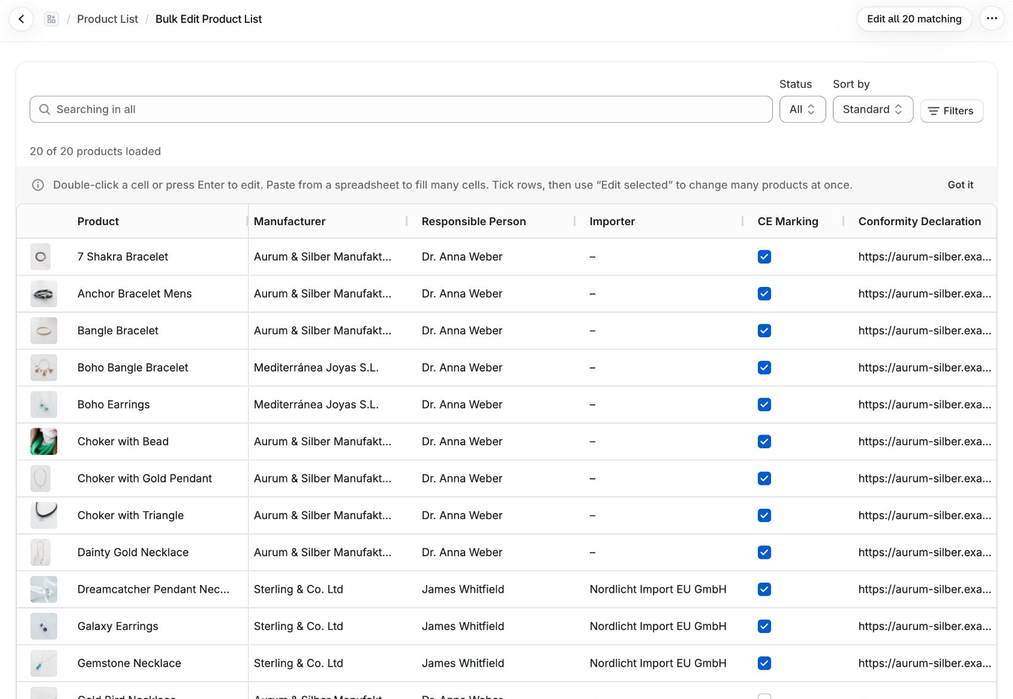
The grid
The grid shows your products with their GPSR data in columns: product, status, vendor, product type, creation date, manufacturer, responsible person, importer, CE marking, conformity declaration, user manual URL, safety warnings and hazard information.
- Use the search field and filters to find the products you need. The counter shows how many products are loaded (“120 of 480 products loaded”); more load as you scroll.
- Click the Product, Vendor, Product Type or Created At header to sort.
- Double-click a cell or press Enter to edit it. Manufacturer, responsible person and importer offer your entities and None. Warnings and hazard information open a list editor; click Apply when done.
- Click Save N products to write your changes to your store, or Discard to drop all of them. If you change the search or leave the page with unsaved changes, the app asks first.
Not in the grid: age restrictions, disposal instructions and instructions are in the Edit Selected dialog (below). Traceability fields and custom information boxes can only be edited per product in Manage Products.
Paste from a spreadsheet
Copy cells in Excel or Google Sheets, click the first cell in the grid where they should go and paste (Ctrl+V or Cmd+V). The cells are filled from there to the right and down, so the columns must be in the grid’s order. One value pasted onto several ticked rows fills all of them.
- Manufacturer, Responsible Person, Importer: write the entity name exactly as in Manage Entities (capitalisation doesn’t matter). An empty cell clears the field.
- CE Marking: yes, ja, true, x or 1 ticks the box; no, nein, false, 0 or an empty cell unticks it.
- Safety Warnings, Hazard Information: separate several warnings with
;. The pasted list replaces the existing one.
The app tells you how many cells were pasted and how many were skipped (unknown names or cells that can’t be edited, such as vendor).
While saving, a progress bar shows “Saving X of Y products”. You can Cancel; the products saved so far are kept and the rest stay unsaved.
If a product cannot be saved, its row is highlighted in red. Hover the product name to see why, fix it and save again.
Edit selected products
Use this to set the same values on several products.
- Tick the rows you want to change. Only loaded rows can be ticked; scroll to load more.
- Click Edit Selected.
- In the dialog, tick the fields you want to change and enter the new values. Only the ticked fields are changed; everything else on the products stays as it is. A ticked text field left empty clears that field.
- For list fields (warnings, hazard information, instructions), choose Add to the existing entries or Replace the existing entries.
- Click Apply to N products.
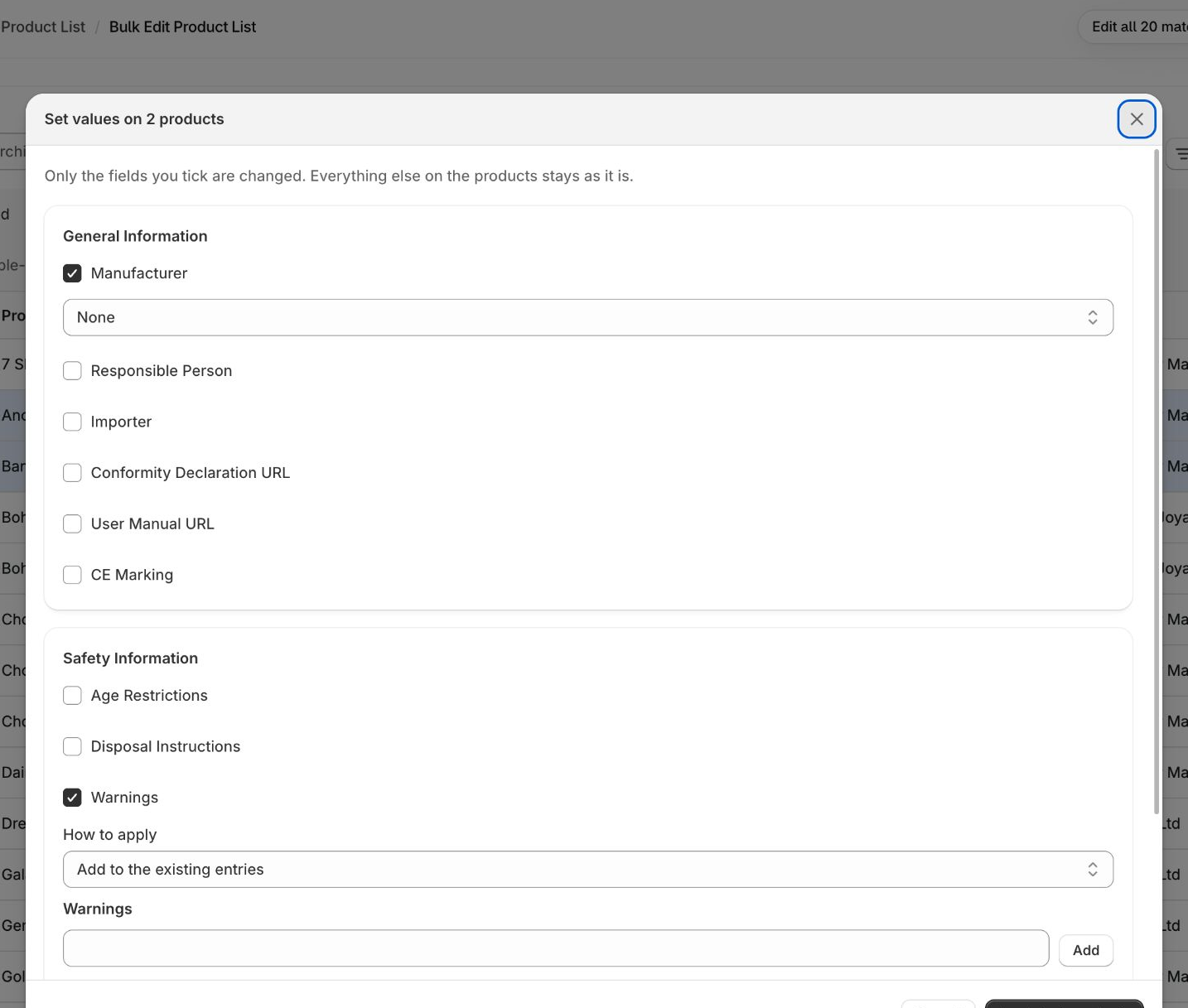
The dialog has these fields: manufacturer, responsible person, importer, conformity declaration URL, user manual URL, CE marking, age restrictions, disposal instructions, warnings, hazard information and instructions. Choose None to remove an entity from the selected products.
From Manage Products
You can also tick up to 100 products in the Manage Products list and click Edit selected. Bulk editing then opens with exactly these products (the filter shows “N selected products”). Click Edit all N matching to set the same values on all of them.
Edit all matching products
Searched or filtered the grid and want to change every match, not only the loaded rows? Click Edit all N matching.
- The update runs in the background on Shopify, so you can leave the page. The dialog shows “Updating X of Y products” while it runs.
- It covers every matching product, not only the ones counted on screen.
- Removing a manufacturer, responsible person or importer is only possible on selected products, not on “all matching”.
- Only one bulk update can run per store at a time, and Apply to existing products of an automated rule counts as one. If another is running, wait a minute and try again.
- When it finishes you see how many products were updated. “Every product already had these values” means nothing needed to change. “Finished, but Shopify refused N of the update calls” means some products may not have changed: run the same update again.

Tips
- Create your entities first so they can be picked in the grid.
- Use Automated Rules when the same vendor always has the same manufacturer, responsible person and importer.
- Do a small test on a few products before applying a change to all matching products.
