Dashboard
Goal: See at a glance how much of your catalog has GPSR data and what is left to do.
The dashboard is the app’s start page.
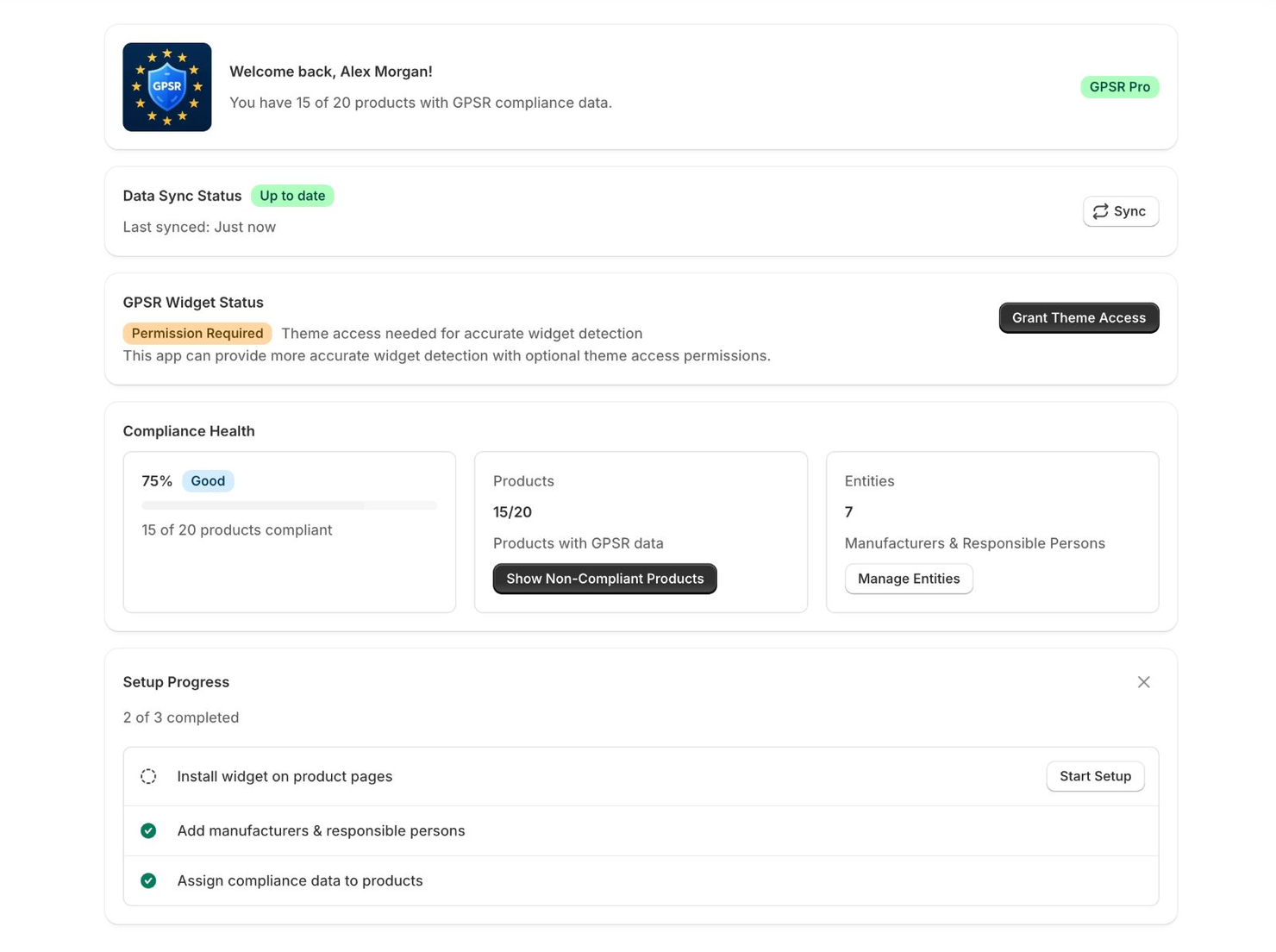
GPSR data overview
The GPSR Data Overview card shows how many of your products have a compliance set, as “X of Y products have GPSR data assigned”, and the same share as a percentage. Show Products Without GPSR Data opens Manage Products filtered to the products that still have no compliance set.
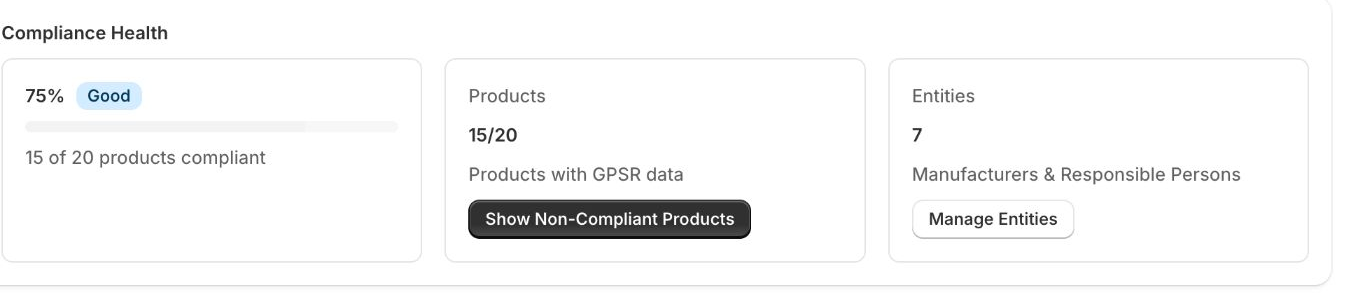
A product counts here when it has a compliance set, which means a manufacturer is assigned to it. Products with only warnings, CE marking or other fields don’t count yet. The figure only counts that data exists. The app does not check whether the data is correct, complete or sufficient under the GPSR, and the figure is not an assessment of whether your products or your store comply with the regulation. You remain responsible for the accuracy and completeness of the information you publish. See Product Compliance Data.
Data sync status
The Data Sync Status card shows when the app last refreshed your product and compliance data (“Last synced: 5 minutes ago”). Click Sync if the numbers look out of date, for example after you changed many products in Shopify. The dashboard also starts a sync by itself when the numbers are old.
Note: Show Products Without GPSR Data can list fewer products than the card counts: products that already existed when you installed the app and were never edited in it may be missing from that list. See Troubleshooting.
Finish setup
New stores start in the guided setup (see First Steps), not on the dashboard. If you skipped it, the dashboard shows a Finish setting up GPSR Compliance card with how many of the four steps are done. Continue setup opens the setup where you left it.
Widget status
The GPSR Widget Status card tells you whether the widget is placed in your theme:
| Status | Meaning |
|---|---|
| Active | At least one GPSR app block is active in your published theme. Setup Guide opens Widget setup. |
| Not Installed | No GPSR app block found. Click Setup Widget. The check reads the standard product, collection and home page templates only; a block in an alternate product template is not found. |
| Permission Required | The optional theme access permission is needed to check. Click Grant Theme Access. |
| Access Required | The app could not read your theme. Click Refresh; if it stays, contact support. |
Details: Widget Setup.
Your plan
The welcome header shows your current plan (Free Plan, GPSR Basic or GPSR Pro). If you cancelled a paid plan, a banner shows the date it ends; you keep its features until then. See Plans & Features.
