Entities
Goal: Your manufacturers, responsible persons and importers exist once and can be picked on any product.
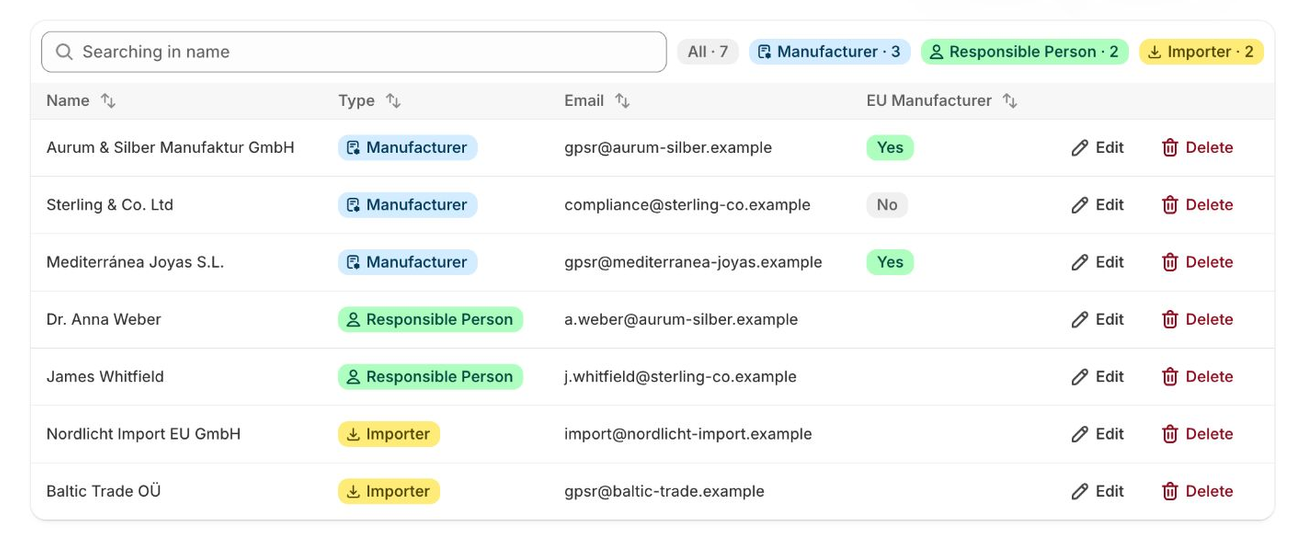
An entity is a business or person named in your GPSR information. There are three types:
| Type | What it is |
|---|---|
| Manufacturer | The business that made the product. Has an extra field Is European Manufacturer. |
| Responsible Person | The EU-based economic operator responsible for the product when the manufacturer is outside the EU. |
| Importer | The business that brings the product into the EU. |
Open Manage Entities in the left navigation.
Add an entity
- Click Add New Entity.
- Choose the Type. You can’t change it later.
- Fill in Name, Address, Email and Website. For manufacturers, set Is European Manufacturer to Yes or No.
- Click Save.
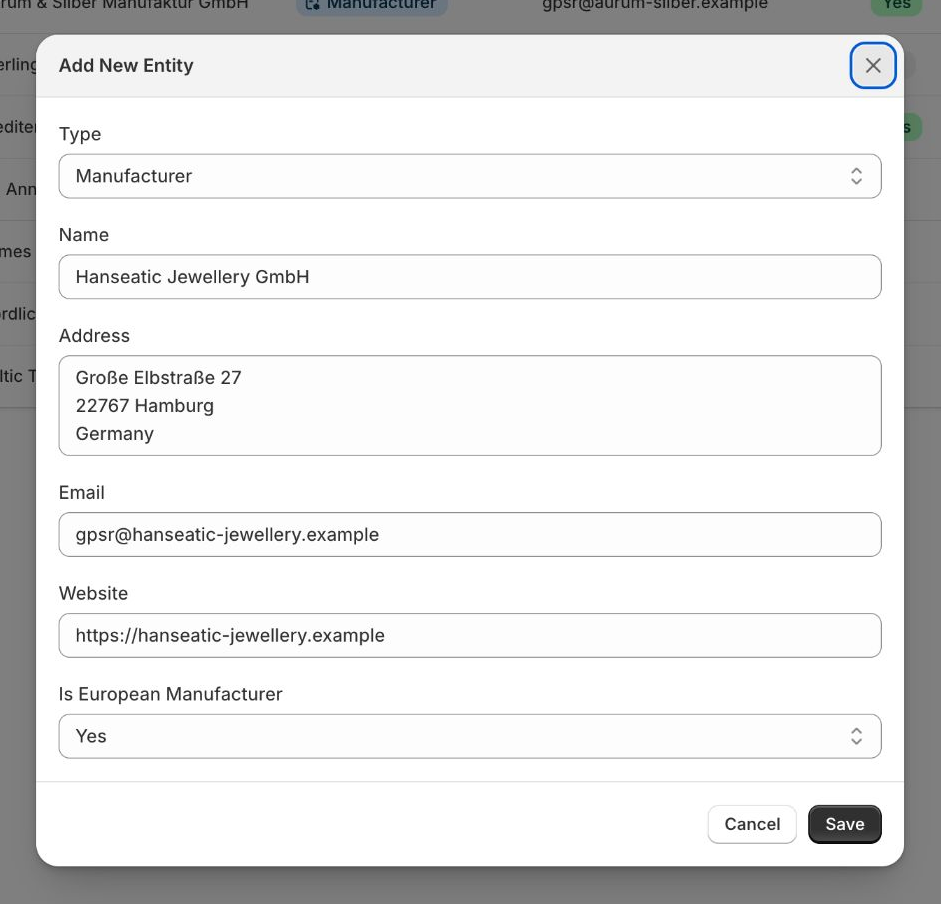
You need to fill in at least one field. The e-mail must be a valid address, and the website must start with https://. There is no limit on the number of entities.
Same business, two roles? If you are, for example, manufacturer and importer, create one entity of each type with the same details. An entity created with the wrong type can’t be changed: create a new one, assign it to the products, then delete the old one.
Edit or delete an entity
Use Edit or Delete in the entity’s row. Editing an entity updates it everywhere it is used, so the storefront shows the new details on every product that references it.
Before you delete, the dialog tells you how many products use the entity. Those products lose the reference when you delete it: the product edit page then shows a technical id in that field until you choose another entity, and automated rules that used it show Entity deleted. Assign another entity to these products first, for example with Bulk Editing.
Search and filter
Use Search entities to search by name and the tabs All, Manufacturer, Responsible Person and Importer to show only one type. Click a column header to sort.
Import entities from CSV
Importing and exporting entities is available on GPSR Basic and GPSR Pro (see Plans & Features).
- Prepare a CSV file with these columns:
entity_type,entity_name,entity_address,entity_email,entity_website,is_european_manufacturer. Theentity_typecolumn is required, plus at least one of name, address, e-mail or website. - Use the values
manufacturer,responsible_personorimporterforentity_type. - Click Import Entities, choose the file and check the preview (“N entities found”). Comma- and semicolon-separated files both work; from Excel, save as “CSV UTF-8”.
- Click Import. A progress bar shows “Imported X of Y”. You can stop the import at any time.
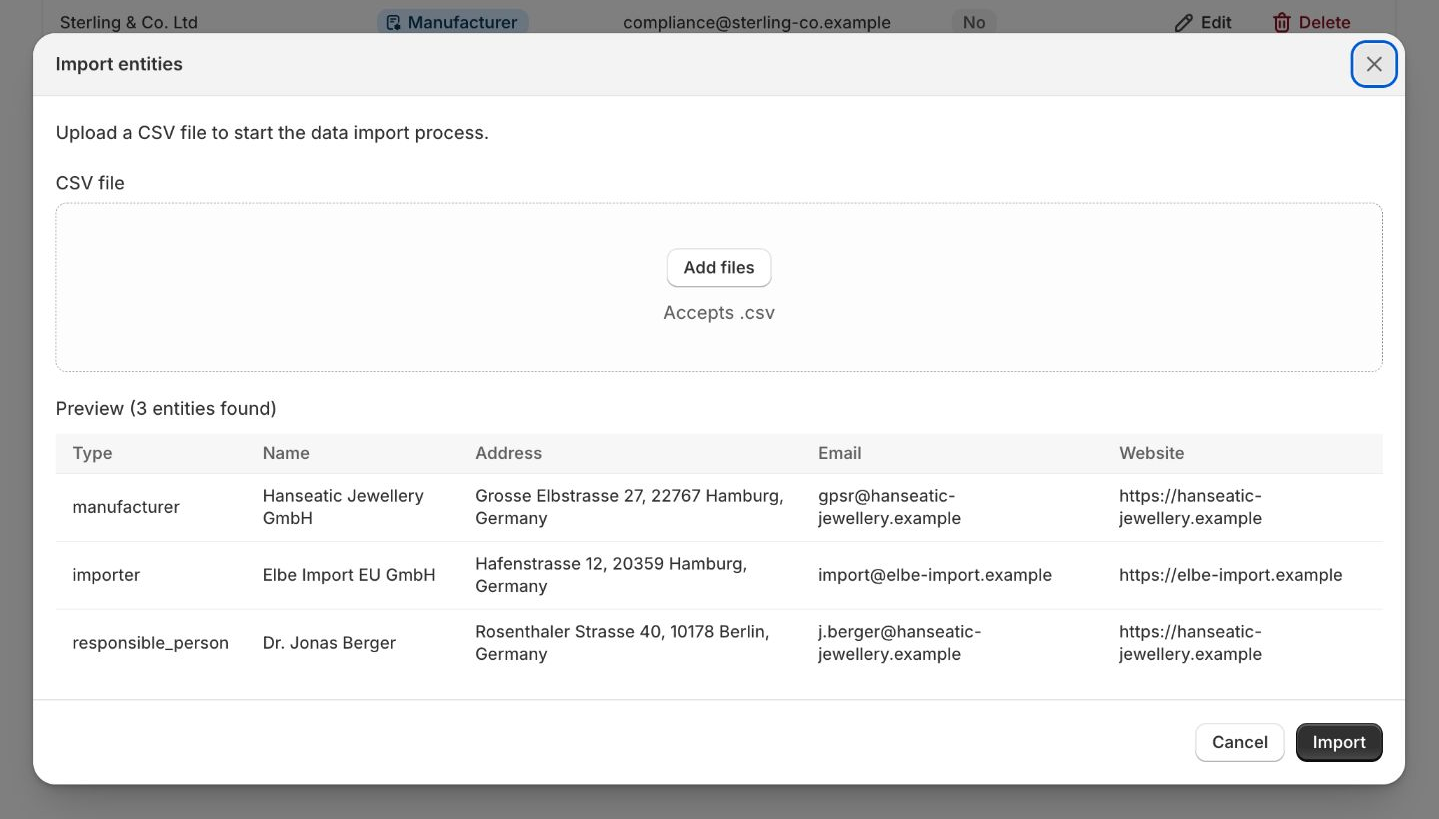
Rows that cannot be imported, for example because of an unknown type or an invalid e-mail address, are listed with their row number. Empty rows are skipped.
Importing always creates new entities. It never updates existing ones, so importing the same file twice creates duplicates. Fix failed rows and import only those again. To change existing entities, edit them on this page.
Tip: The easiest way to get a correctly formatted file is to export your existing entities first and use that file as a template.
Export entities to CSV
Click Export Entities to download all entities as entity_export_<date>.csv. The file uses the same columns as the import and also contains an entity_id column.
Use entities on products
Entities are selected in the product edit form (Product Compliance Data), in Bulk Editing and in Automated Rules.
