Product Compliance Data
Goal: A product carries all the GPSR information the law requires, in the languages your shoppers use.
Find a product
Open Manage Products. The list shows each product with its status, vendor, product type, SKU, GARAN label and whether it has a Compliance Set. A product shows Set once a manufacturer is assigned; other fields alone keep it Not set.
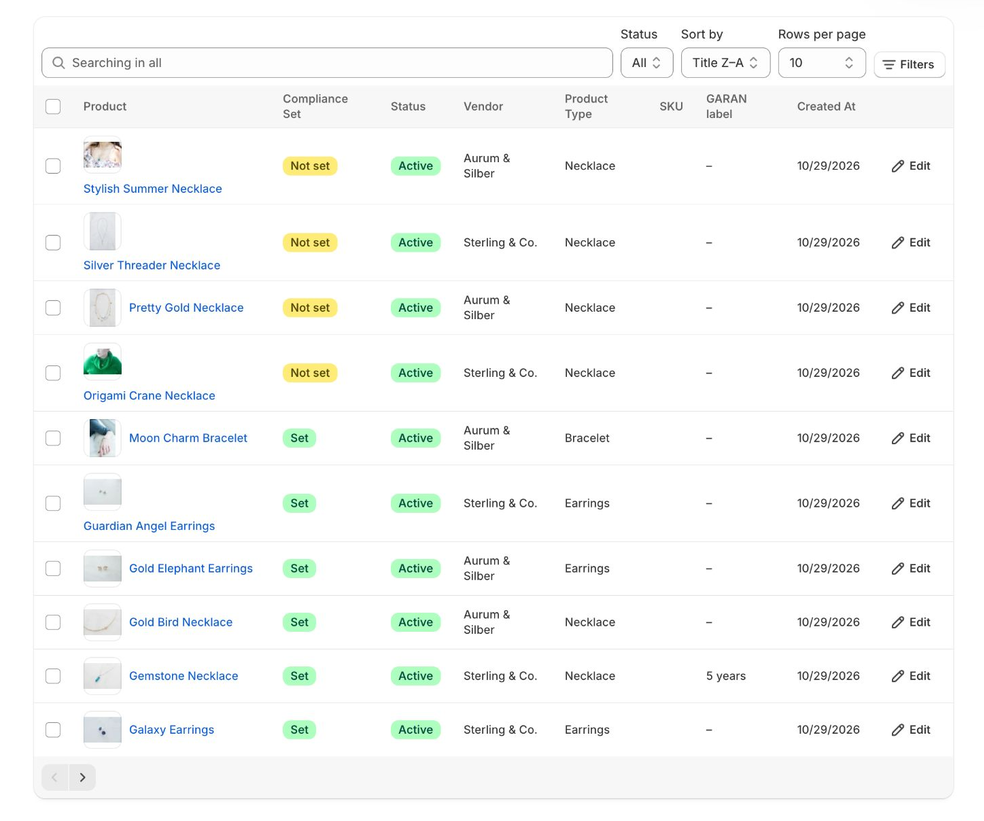
Search and filters
- The search box (“Searching in all”) searches titles and other fields while you type.
- Status narrows the list to Active, Draft or Archived products.
- Filters narrow it by compliance (With Compliance Set or No Compliance Set), vendor, product type, tag, collection, SKU and creation date. Click Apply filters.
- Sort by title or creation date, and choose Rows per page (10, 20 or 50).
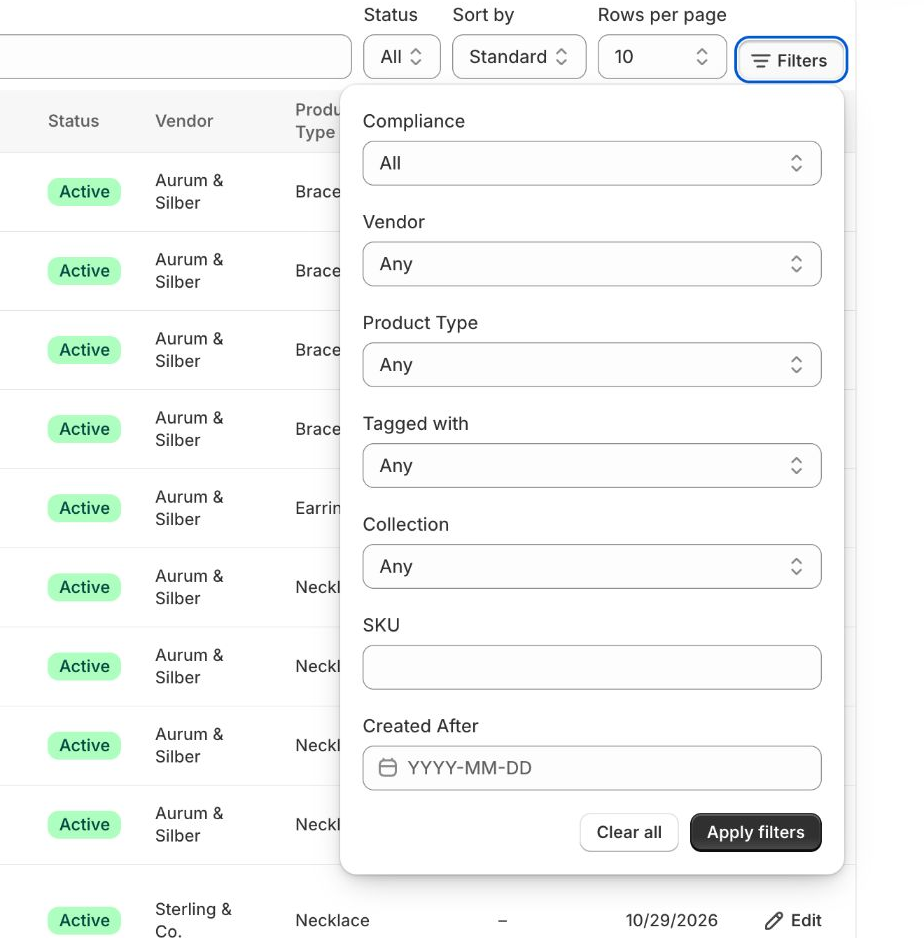
Tip: The dashboard’s Show Products Without GPSR Data button opens this list already filtered to products without a compliance set. Products that already existed when you installed the app and were never edited in it may be missing from this filter; the Manufacturer column in Bulk Editing shows every product.
Edit several products: tick up to 100 products and click Edit selected. Bulk Editing opens with exactly these products (Basic and Pro).
Edit a product
Click a product, or click Edit in its row. The edit page has these sections. A save bar appears as soon as you change something; use Save to store your changes or Discard to drop them.
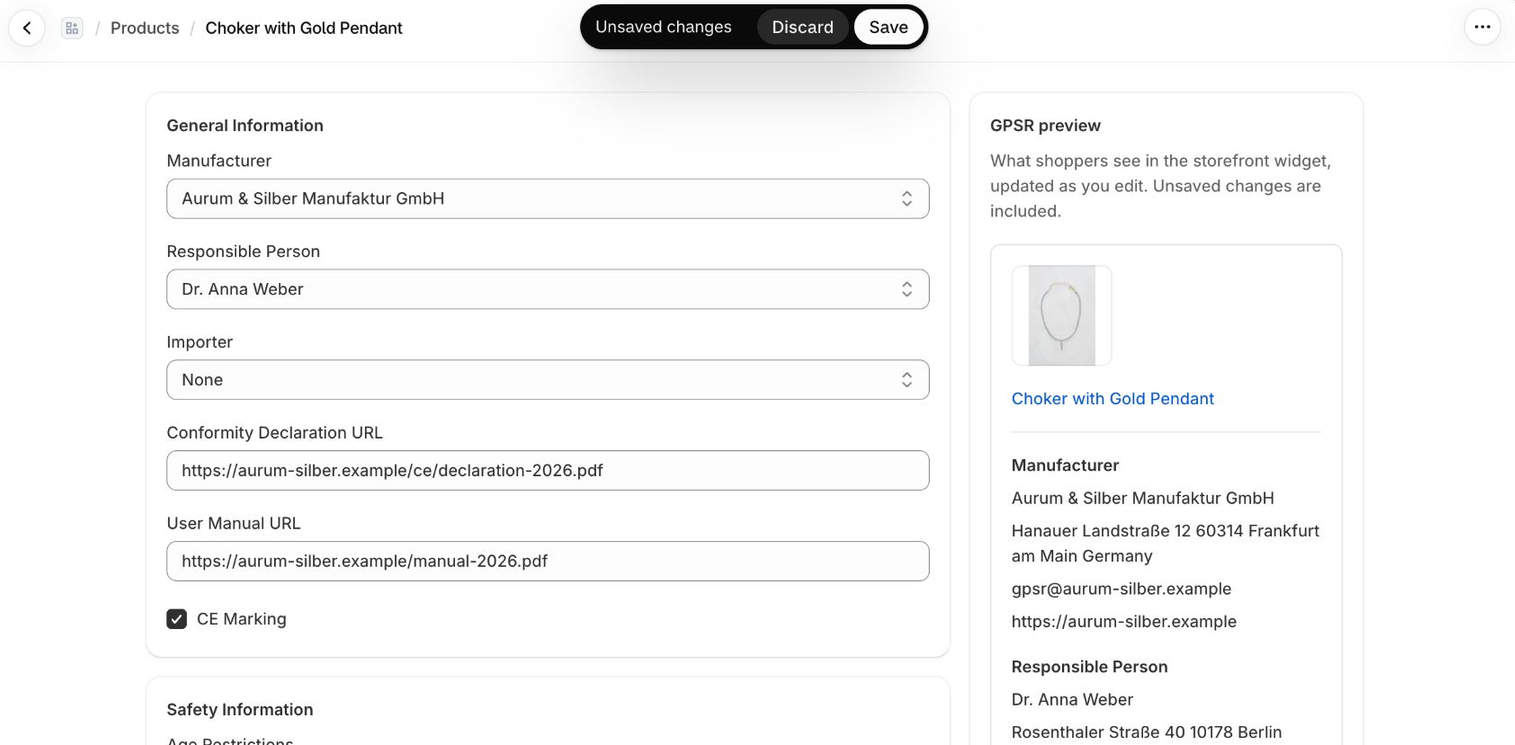
General Information
- Manufacturer, Responsible Person, Importer: pick from your entities. If an automated rule is enabled for the product’s vendor, the rule sets these again whenever the product is updated.
- Conformity Declaration URL: link to the EU declaration of conformity.
- User Manual URL: link to the manual.
- CE Marking: tick this box if the product carries the CE mark.
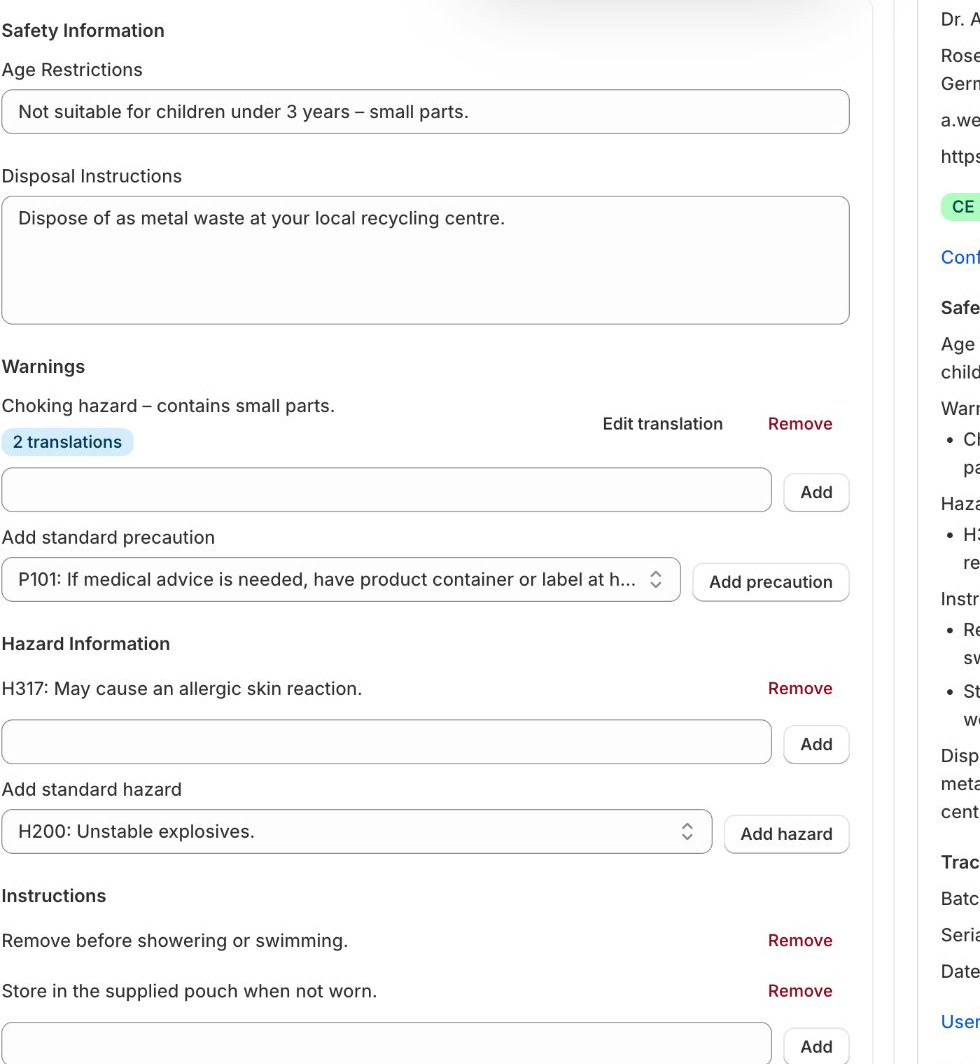
Safety Information
- Age Restrictions
- Disposal Instructions
- Warnings and Hazard Information: see Safety Warnings & Hazards.
- Instructions: a list of plain-text instructions for safe use. Click Add for each item. Instructions are not translated.
Traceability
Batch Number, Serial Number and Date of Manufacture. The widget shows them when Show traceability information in widget is on (see Customizing the Widget). These fields can only be edited here, not in bulk.
Custom Information Boxes
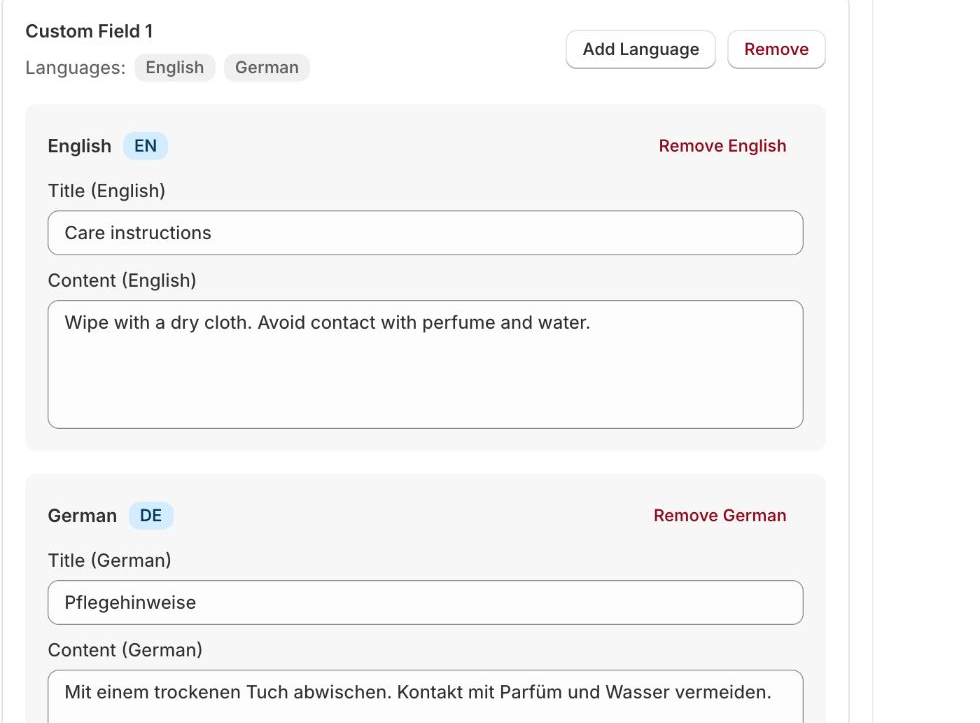
Add your own titled boxes for anything else you want to show, for example “Care instructions”.
- Click Add Custom Field. A new box appears.
- Click Add Language, choose the language and enter a title and content. Basic HTML is allowed in the content. Click Save.
- Repeat Add Language for every language you want to offer.
- Click Save in the save bar.
Shoppers see the box in their language. If it has no text in their language, they see the English text, and without English text the box is not shown. Fill in English as a fallback if your store has several languages.
Languages and translations
Warnings, hazard texts and custom boxes can be translated into every EU language. Shoppers see the text in the language they browse your store in and get the default text if no translation exists for their language. A translation only appears if that language is published in your Shopify store.
- By default the app offers the languages of your store. If you also sell through other channels, switch on Offer all EU languages in Settings.
- To see your store’s languages the app needs the language permission. If the editor shows Allow access, click it and approve.
Live preview
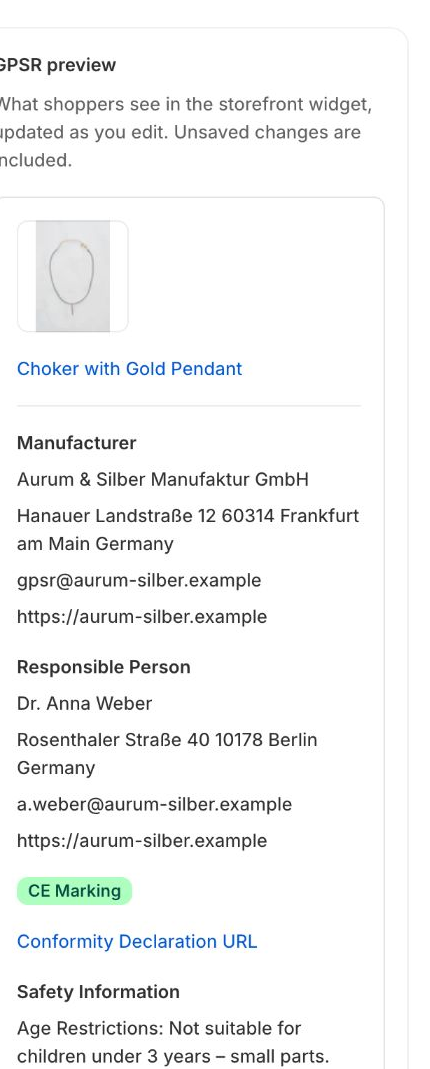
The GPSR preview panel shows what shoppers will see in the widget, updated as you type, including unsaved changes. Use Preview language to check translations.
Many products?
Use Bulk Editing to change several products at once, or Automated Rules to assign entities by vendor.
