Widget Setup
Goal: The widget shows your GPSR data on your product page.
The widget is delivered as a theme app extension. You add it in the theme editor like any other app block. Requirement: an Online Store 2.0 theme that supports app blocks, such as Shopify’s free themes. No code is needed.
Open Widget setup in the app’s left navigation.
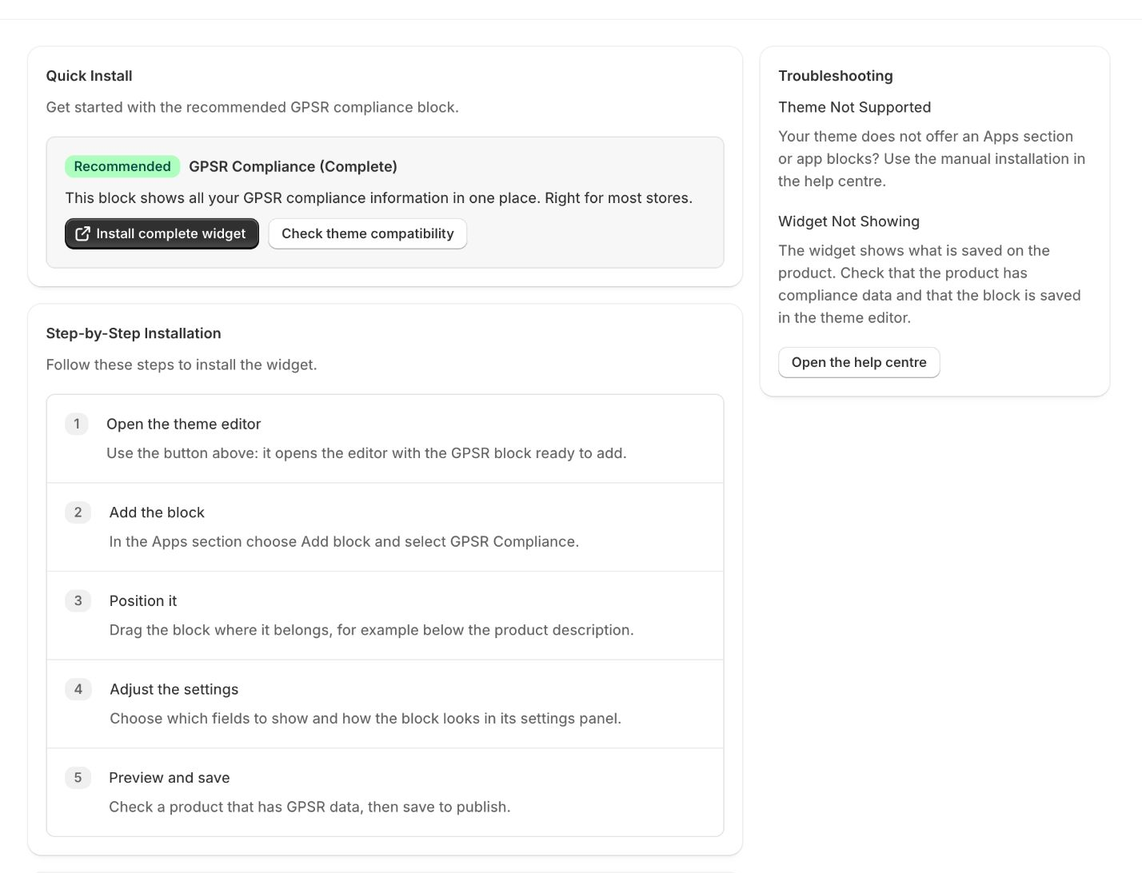
Quick install
- Click Install complete widget. The theme editor opens on a product page with the GPSR Compliance block ready to add.
- In the Apps section of the product page, choose Add block and select GPSR Compliance.
- Drag the block where it belongs, for example below the product description.
- Adjust the block settings if you like (see Customizing the Widget).
- Preview a product that has GPSR data, then click Save.

Theme compatibility report
Click Check theme compatibility to analyze your current theme. This needs the optional theme access permission.
| Result | Meaning |
|---|---|
| Compatible | Your product page accepts app blocks in its main section. Install straight from the theme editor. |
| Compatible with an Apps section | Your theme supports app blocks but not in the main product section. The block is added to an Apps section that you can move on the page. |
| Online Store 2.0 theme required | Your theme has no JSON product template, so it does not support app blocks and the widget can’t be added. Switch to an Online Store 2.0 theme. See Theme has no app blocks. |
Available blocks
| Block | Shows |
|---|---|
| GPSR Compliance (Complete) — in the theme editor: GPSR Compliance | All compliance information in one block. Right for most stores. |
| Manufacturer — GPSR Field | Manufacturer | Manufacturer name, address and contact details only. |
| Importer — GPSR Field | Importer | Importer details for products brought into the EU. |
| Responsible person — GPSR Field | Resp. Person | The EU responsible person’s details. |
| Compliance & safety data — GPSR Field | Compl. Data | Safety warnings, CE marking and documents. |
The first name is the one on the Widget setup page, the second the one in the theme editor. Use the single-purpose blocks if you want to place information in different spots on the page, for example the manufacturer next to the price and the safety data further down.

Check that it works
Open a product with saved compliance data on your storefront. The widget should appear. If it does not, see Troubleshooting.
If your products use several product templates, add the block to each of them. The installation check on the dashboard only reads the standard templates of your published theme, so a block in an alternate product template shows as Not Installed there even though it works.
