First Steps
Goal: GPSR data appears on one of your product pages.
Time: about 15 minutes.
Prerequisites
- You have admin access to your Shopify store.
- The app is installed. If not, follow Installation first.
The guided setup
The first time you open the app, it starts Set up GPSR Compliance, a guided setup with four steps. It covers the same ground as the manual steps below.

- Your business: choose who is responsible for your products. The answer only decides which entities the setup suggests next.
- Entities: add at least one manufacturer. Use my store details fills in your store’s name, address, e-mail and domain; check them before you click Save.
- First products: choose the entities, then either click Choose product (the product opens with the entities filled in; click Save there) or enter a brand and click Apply to brand. Apply to brand creates an automated rule for that vendor and applies it to the vendor’s existing products. On Free and Basic this uses your plan’s one rule.
- Storefront widget: click Add widget in theme editor, save in the theme editor, then click Check installation. If the app cannot check your theme, click I’ve added it.
Skip setup takes you to the dashboard, where a Finish setting up GPSR Compliance card brings you back. Stores that already had entities when they first opened this version of the app go straight to the dashboard.
You can also do the same steps by hand:
Step 1: Create your entities
An entity is a manufacturer, an EU responsible person or an importer. You create each one once and then pick it on your products.
- Open Manage Entities in the app’s left navigation.
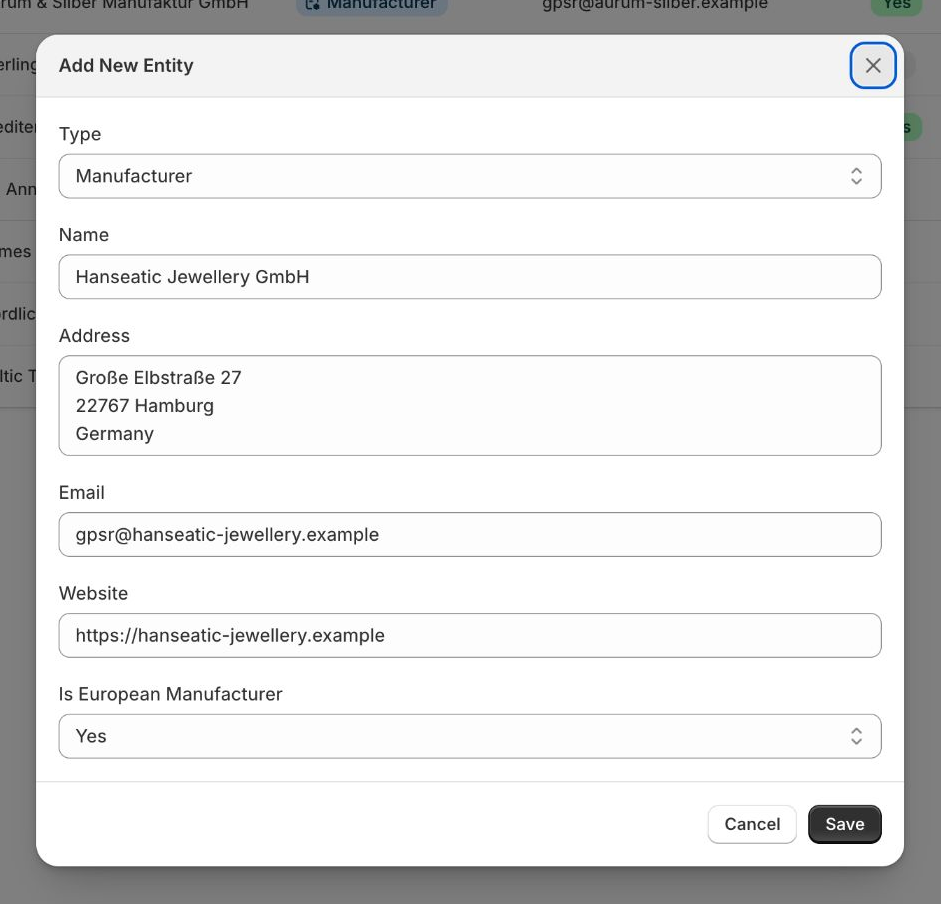
- Click Add New Entity.
- Choose the type, enter the name, address, e-mail and website, and click Save.
Detailed guide: Entities
Step 2: Add compliance data to a product
- Open Manage Products.
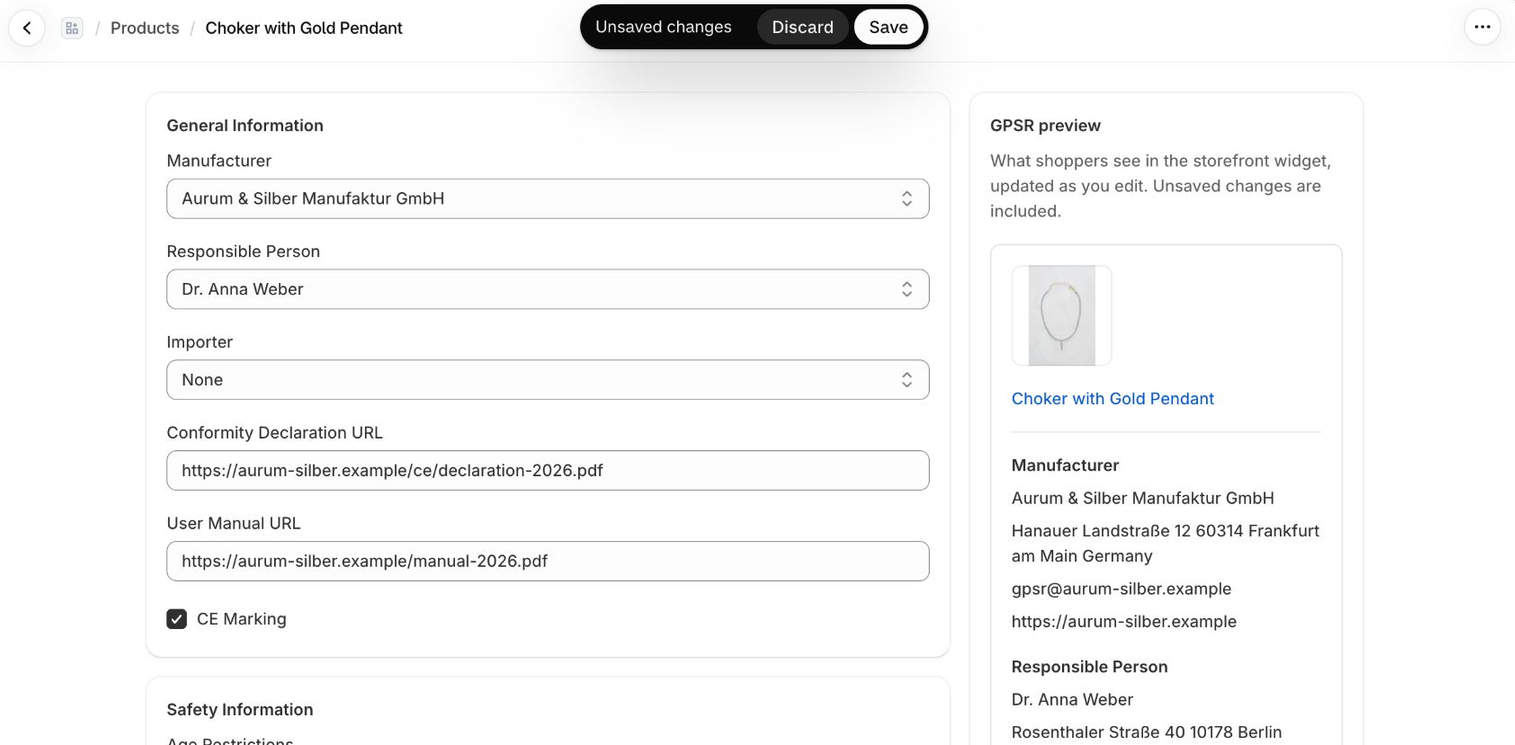
- Click a product, or use Edit in its row.
- Select the manufacturer (and the responsible person and importer, if you have them), and fill in any safety information you have. The product counts as having GPSR data once a manufacturer is selected.
- Click Save.
Detailed guide: Product Compliance Data
Step 3: Add the widget to your product page
- Open Widget setup in the app.
- Click Install complete widget. The theme editor opens with the GPSR block ready to add.
- Add the block to your product page, place it where you want it, and click Save in the theme editor.

Detailed guide: Widget Setup
Step 4: Check the result
Open the product from Step 2 on your storefront. The widget shows the data you saved.

If nothing appears, see Troubleshooting.
What next?
- Many products? Use Bulk Editing or Automated Rules.
- Sell outside the EU too? See Settings for EU-only visibility.
- Sell products with a durability guarantee? See the Guarantee & GARAN overview.
