GARAN Labels
Goal: Products with a qualifying producer guarantee carry the GARAN label.
GARAN is the EU label for a producer’s voluntary durability guarantee. It is optional. See the overview for how it relates to the legal-guarantee notice.
Who may use the label
A product may carry the label only if all three are true:
- The producer’s guarantee is free of charge.
- It covers the whole product.
- It lasts more than two years.
If you are not sure, don’t enable the label. The app is a technical tool, not legal advice.
Switch it on
- Open Guarantee & GARAN labels.
- In Settings, switch on Offer a GARAN durability label.
- Optionally enter a Guarantee conditions link (all products). It is used for every product without its own link.
- Click Save.
Add a label to a product
In GARAN labels, use Search products to find a product and click Edit.
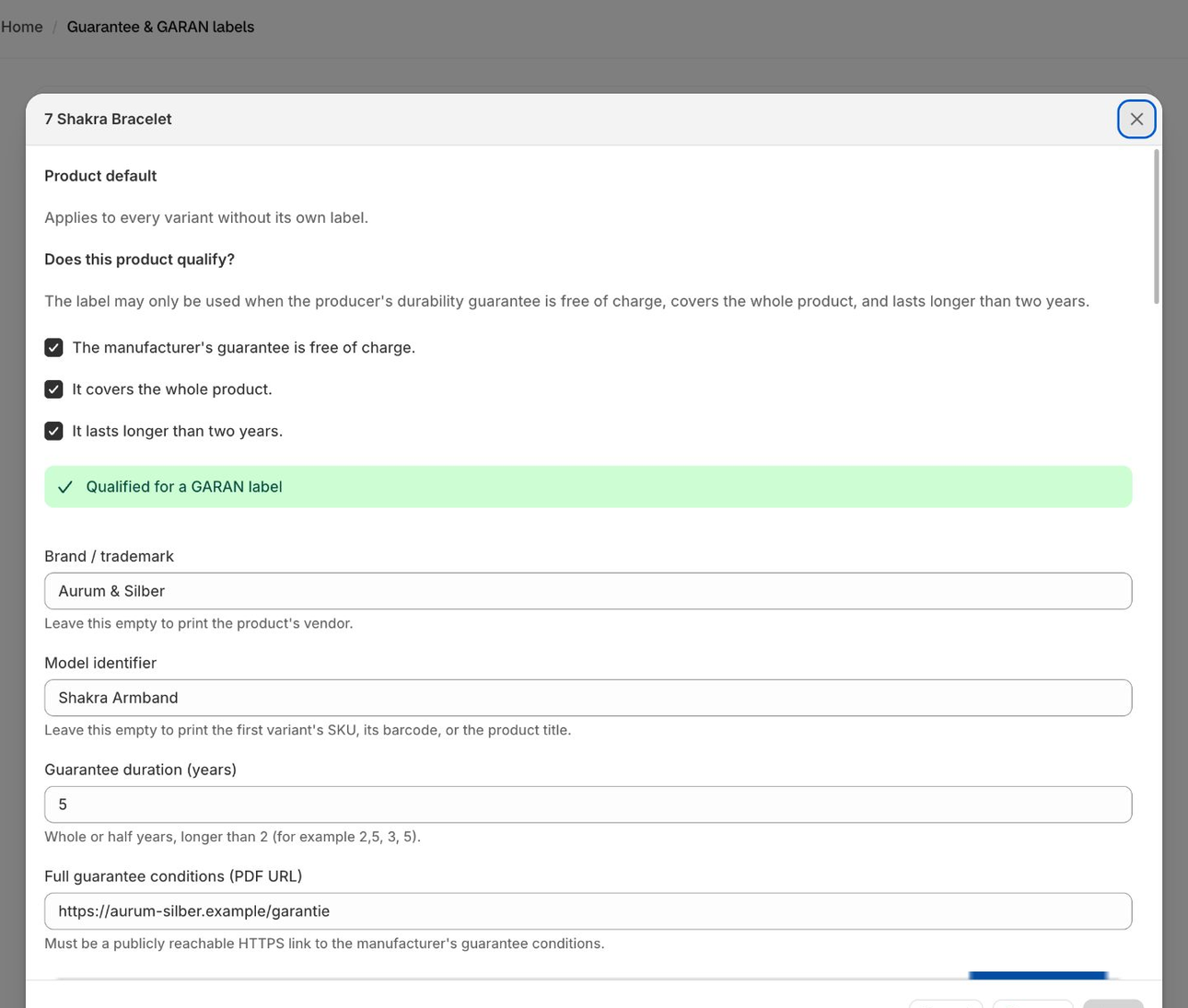
- Under Does this product qualify?, confirm all three criteria.
- Enter the Guarantee duration (years): whole or half years, longer than 2 (for example 2.5, 3, 5).
- Optional: Brand / trademark. If empty, the product’s vendor is printed.
- Optional: Model identifier. If empty, the first variant’s SKU, its barcode or the product title is printed.
- Optional: Full guarantee conditions (PDF URL): a public
https://link to the manufacturer’s guarantee conditions. - Save.
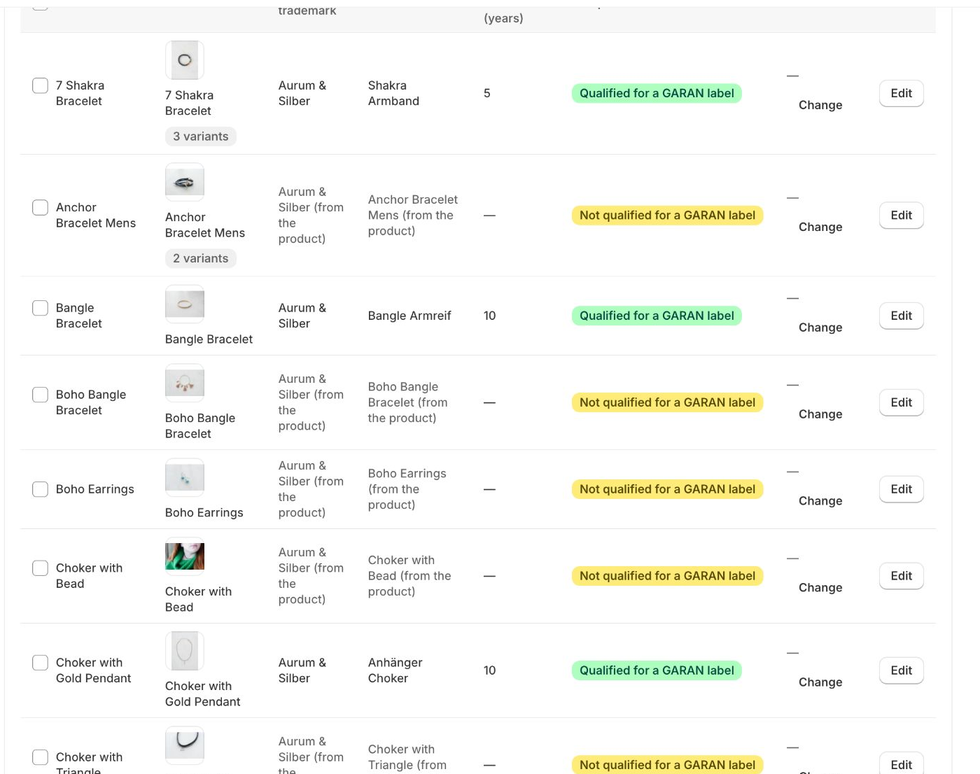
Products with a label are shown in the GARAN label column of Manage Products, with the number of years.
If you save without meeting the rules, the app tells you why, for example “A GARAN label requires a guarantee of more than 2 years”.
Variants
By default a label applies to every variant of the product (the Product default). In Variants you can give each variant:
- Use the product default
- Own label: its own duration, model and so on
- No label: leave the variant out
Only the rows you change are saved. Very large variant lists show the first batch and tell you “Showing X of Y variants”; the others keep the product default.

Apply to many products
Tick the products in the table and click Apply GARAN. The criteria and the duration you enter are written to every selected product. Brand, model and each product’s own conditions link stay as they are.
To remove labels, select products and click Remove GARAN. This deletes the label data of those products, including brand and model, and cannot be undone.

CSV import and export
For large catalogs, work in a spreadsheet:
- Click Export CSV. The file contains every product matching the current search; an empty search exports all products. Leave the
idcolumn as it is. - Fill in the label columns. The last two columns,
excludedandused, carry the per-product notice flags. - Click Import CSV, choose the file and click Import.
Good to know:
- The file has to be one exported from the app.
- Rows that don’t confirm all three conditions are left unchanged, and are counted as “left unchanged”. To remove a label, use Remove, not the CSV.
- If a product appears twice, the last row wins.
- A row that fills only
excludedandusedwrites the flags and no label. An empty cell leaves the flag as it is. - To label one specific variant, put its id in the optional
variantIdcolumn. Leave it empty for a normal product row. - If the import stops, rows written before that are saved. Import the same file again, it writes the same records.
- Rows that failed are listed with their line number.

Show the label on your storefront
Add one of these in the theme editor:
| Where | How |
|---|---|
| Product page | Add the GARAN label block to your product template. |
| Cart page | Add the GARAN label (cart) block to the cart template. |
| Cart drawer | Switch on the GARAN label (drawer) app embed. The block on the cart template never appears in a drawer. |
The Setup check on the Guarantee page shows which of these are in place.

Block settings
The label block lets you pick the product to show, open by default, whether to show the guarantee conditions link, the badge and label width, alignment, style and colors. The App proxy path field is advanced: leave it as it is.
The label always opens the page that its QR code points to.
