Safety Warnings & Hazards
Goal: Your safety information uses standard, correctly worded statements and is shown in your shopper’s language.
Both lists are part of the Safety Information section of the product edit page.
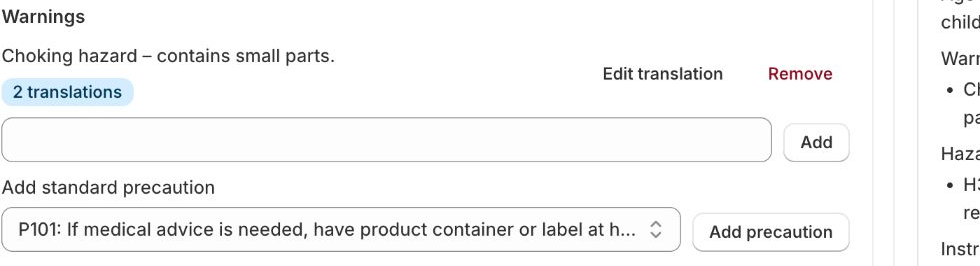
Warnings
Use Warnings for product safety warnings such as “Not suitable for children under 36 months”.
- Your own warning: type the text in the empty field and click Add. Then use Translate on the new item to add translations.
- Standard precaution (P) statements: choose one in Add standard precaution and click Add precaution.
- Toy warnings: the same Add standard precaution list also contains the ten standard EN 71 toy warnings. They are added with the official wording in all EU languages, so you do not need to translate them yourself.
Hazard Information
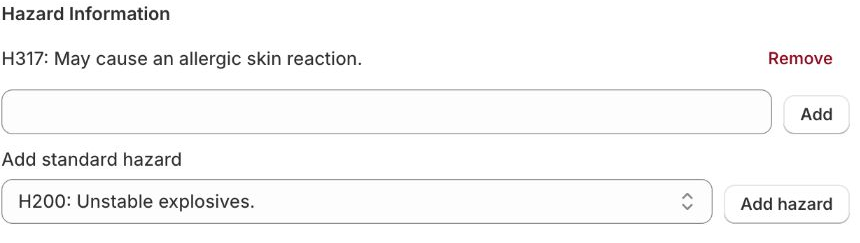
Use Hazard Information for hazard statements for chemical products.
- Standard hazard (H) statements: choose one in Add standard hazard (for example H302, “Harmful if swallowed”) and click Add hazard.
- Your own hazard text: type it in the empty field and click Add.
The standard statements are available in all EU languages, so a statement picked once is shown in your shopper’s language automatically. H statements are shown with their hazard pictogram.
Statements with placeholders
Some standard statements contain a placeholder where you must add product-specific text. For these, the picker shows Custom text #1# (and #2#) fields. Fill them in before you click Add hazard or Add precaution. Whatever you type replaces the placeholder in the statement shown on the storefront.
Show statement numbers
The widget can show the statement code (such as H302) in front of each statement. This is a setting of the widget block: Show statement numbers in safety information. See Customizing the Widget.
Translations
For your own warnings and hazard texts:
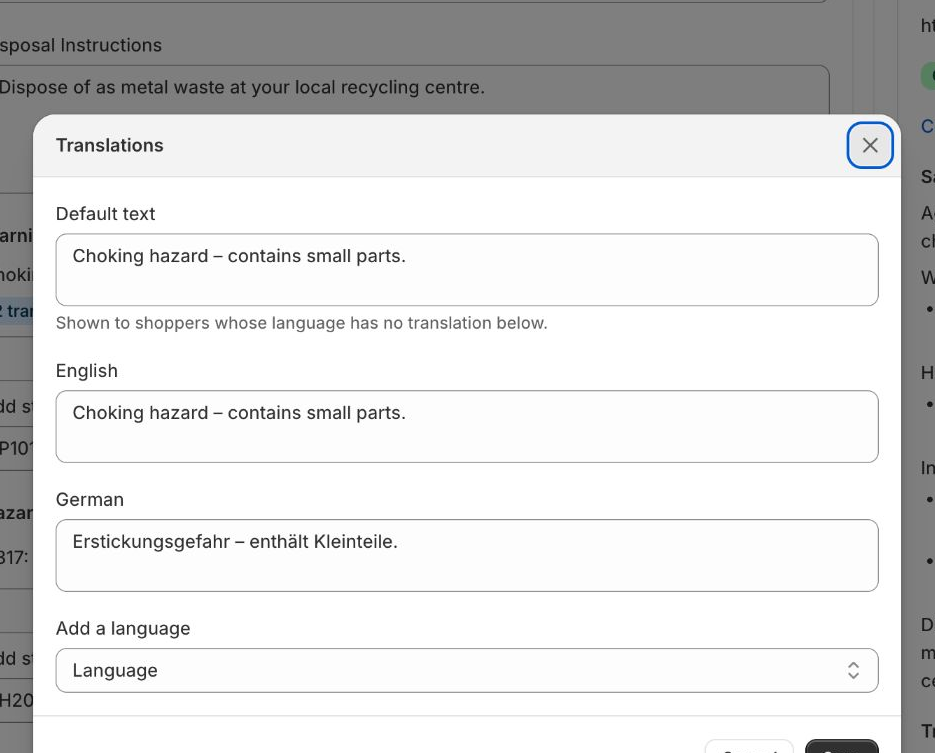
- Click Translate on the item (later Edit translation).
- Check the Default text. Shoppers whose language has no translation see this.
- Enter the text for each language. If your store’s languages are not listed, pick one with Add a language.
- Click Save in the dialog, then Save on the page.
The list shows how many languages are translated (“3 of 4 languages translated”). Instructions can’t be translated.
Many products: with Bulk Editing (Basic and Pro) you can add warnings and hazard statements to many products at once, either added to the existing entries or replacing them.
Note: The wording of standard statements and toy warnings is fixed because it is legal text. If you need a different wording, add your own text.
